Shenzhen Longqi Tech Co., Ltd.
How to Install a Smart Wifi Switch and Connect It to My Phone?

On this page
1. Installation Precautions
* Install the smart switch with electricity off
* Do not install in damp environment
* Do not exceed the maximum load
* Please follow instructions and properly install
2. Turn on Switch
Remove the panel with screwdriver
(please don't install with electricity power on)

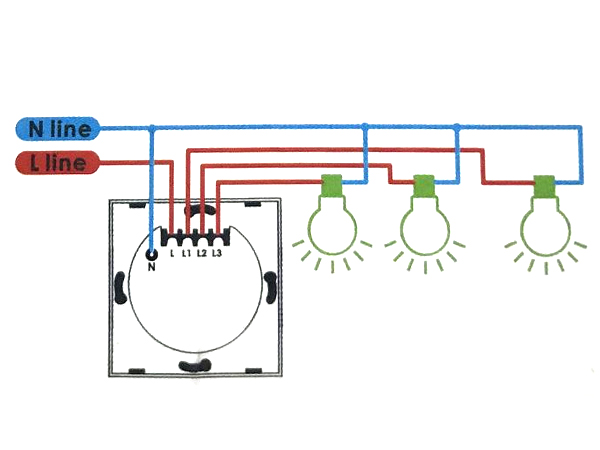
3. Installation Wiring Diagram
* Prepare to install wiring
A. Fire wire connects "L" terminal
B. Lamp wire connects "L1, L2,L3" terminal
1 Gang connects "L2" terminal
2 Gang connects "L1,L3" terminal
3 Gang connects"L1,L2,L3"terminal
4. Fix the switch onto wall
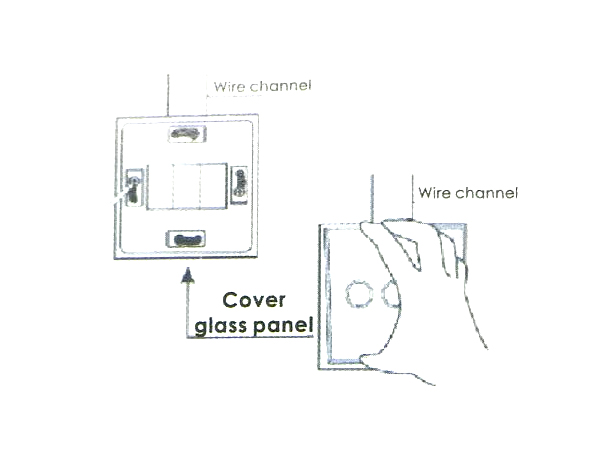
A. Put the switch into switch box in the wall.
B. Mount the two side screws.
C. Install the glass panel (install from up above).
D. Finish installation.
E. Turn on electricity, touch after 10 seconds.
5. Connection instructions
A. Scan QR code to download APP software.

B. Sign up for an account and log in.
C. Open Tuya or Smart Life App, Tap the "+", then choose Switch(Wi-Fi).
D. Confirm indicator rapidly blink.
E. Confirm your 2.4GHz network.
F. Connected

* Install the smart switch with electricity off
* Do not install in damp environment
* Do not exceed the maximum load
* Please follow instructions and properly install
2. Turn on Switch
Remove the panel with screwdriver
(please don't install with electricity power on)
3. Installation Wiring Diagram
* Prepare to install wiring
A. Fire wire connects "L" terminal
B. Lamp wire connects "L1, L2,L3" terminal
1 Gang connects "L2" terminal
2 Gang connects "L1,L3" terminal
3 Gang connects"L1,L2,L3"terminal
4. Fix the switch onto wall
A. Put the switch into switch box in the wall.
B. Mount the two side screws.
C. Install the glass panel (install from up above).
D. Finish installation.
E. Turn on electricity, touch after 10 seconds.
5. Connection instructions
A. Scan QR code to download APP software.
B. Sign up for an account and log in.
C. Open Tuya or Smart Life App, Tap the "+", then choose Switch(Wi-Fi).
D. Confirm indicator rapidly blink.
E. Confirm your 2.4GHz network.
F. Connected